Firefox is very extensible, and the app store has a large number of extensions one can install.
One of these extensions is the Multi-Account-Container plugin, which allows users to separate websites from each other. What it does is creating a separate environment for all the cookies, you get a separate instance of the browser in every container you create.
That is very useful to containerise websites which like to track visitors everywhere, like Facebook as example. You create one container for Facebook, where you login into your account. And outside of this container you are not logged in, as far as Facebook is concerned.

How do install the extension
Installing the extension is easy: Either follow this link to the Extensions website, or click on the hamburger menu button, go to “Settings” and there click on “Extensions & Themes”. In the search field, enter “multi-accoount” and select the search result which is from “Mozilla Firefox”. Please note that there are a couple of other search results which may provide similar functionality, but are not provided by Mozilla.
After installing the extension, click on the three dots next to it, and go to “Preferences”. At a minimum you likely want to have “Enable Bookmark Menus” enabled.
The next step is to provision a couple of containers. Click on the extensions button, and select “Firefox Multi-Account Containers”. Click on “Manage Containers” and create containers for your websites. You can move the containers up and down to reach often used containers more quickly.

How to use the containers
Once you have installed and configured the extension, you again click on the Extensions button, select the extension and there you see all the containers you have configured. Select one, a new tab with the container will open and you can open the website in this tab.
The address bar will also show the container name on the right side:

New websites opened from here will, by default, be opened in the same container. However you can right click any link, and select a different container. The website will then be opened in the selected container.
How does “Login with …” work
Some websites offer “Social Login” (OAuth), where the website is the identity provider for other websites. This is useful in order to login with one account into multiple websites. It’s convenient for users, because they don’t need to remember many logins (you should really use a Password Manager anyway). It’s also a security problem if someone breaks into this one identity provider account, which then enables access to many other websites and services.
Plus the identity provider controls your identity, and can easily turn off access to your accounts at a whim: got your account blocked for whatever reason? Now you lost access to all the other services and websites as well.
Well known examples are “Login with Google” or “Login with GitHub”, but there are many more.
When you are using Containers in Firefox, the websites are separated from each other. If you are logged in into your identity provider in one container, a website in another container does not have access to the login. You have to login into the identity provider again in the each container where you need access to your identity. Keep in mind that doing this enables the website to potentially track all your movements in this container: if you log into Facebook in one container, every website which sends data to Facebook knows that you visited this website. This kind of defies the purpose of browser containers.
What’s the difference between Containers and Anonymous Tabs
There are two major differences: for starters, Anonymous Tabs work like a single, large separate container. Which is thrown away when you close the last anonymous tab.
You can see Anonymous Tabs as a separate browser which is started fresh and empty every time you start it. No history about the past, no cookies, no nothing. That’s useful in order to login into websites with a separate account. Or not to “pollute” the cookies and the history in the browser with whatever website you want to visit. Maybe you don’t want everyone to know which website you visted. That’s alright, use an Anonymous Tab for this. Just remember to close the tabs afterwards. Also keep in mind that all websites in Anonymous Tabs share the same data. If you log into multiple websites while still having Anonymous Tabs open, potentially the websites can know about each other.
Containers on the other hand store the cookies and everything, just not in the main browser but inside of the container. When you close the browser and come back, you are still logged in into the website. That’s useful. When you remove the container, all the data for this container, all cookies and everything, is gone.
Always Open websites in a specific container
It is possible to pin websites to specific containers. In my own setup I have about 30 different containers in Firefox, which pin certain websites into this container. Some examples:
- Mastodon
- Telegram
- Geocaching
- Komoot
- Banking websites
- everything PostgreSQL (the PostgreSQL Community provides a Community account, as identity)
- OpenStreetMap (if I could just make this container remember my login …)
- …
Side note: I use Firefox a bit differently than other people might do: everything which requires logins, or long-term cookies, goes into Firefox. For regular surfing and reading news and whatnot I’m using a different browser, which removes all cookies when I end close the browser. The other browser has more plugins to defend tracking, reject cookies by default, turn off JavaScript ect. Therefore I’m a bit more picky what goes into Firefox.
When you open a website in a container in Firefox, you can click on the icon with 4 squares which is right to the URL input field. When you hover over the icon it says “Always open in this container”. Click on it, select the container where you want this website pinned to. Next time you type in the URL into the address line, it will automatically be opened in this container.
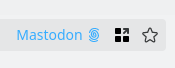
Another note: If you use this feature, you can no longer open this website in a different container. Even if you start another container and type in this website, Firefox will redirect this request to the pinned container.
Open bookmarks in a specific container
Sometimes you don’t want to pin a website to a specific container, but still make sure that a bookmark opens in a specific container. Let’s say you use multiple Google accounts, have the accounts separated in different containers, and want the bookmark to open each account in the respective container. That’s possible, but with a quirk.
Instead of pointing the bookmark to: https://google.com/, you need the following entry: ext+container:name=GooglePrivate&url=https://google.com/.
This will open the Google website in the GooglePrivate container. Add as many bookmarks pointing to different containers as you need.
If the URL is more complicated, with parameters in it, you might need to encode the parameters. Encoding means that instead of characters like ? or / or &, the hex characters (%3F, %2F, %26) are used. I found the website urlendocer useful for any hex code I don’t know from the top of my head.
As example, the URL https://www.google.com/search?q=mastodon will be encoded to https%3A%2F%2Fwww.google.com%2Fsearch%3Fq%3Dmastodon, and then the bookmark is: ext+container:name=GooglePrivate&url=https%3A%2F%2Fwww.google.com%2Fsearch%3Fq%3Dmastodon and opens in the GooglePrivate container.
Summary
The Firefox Multi-Account Container Extension is very useful in order to separate websites and cookies. This eliminates many tracking avenues for websites, and allows to use websites with multiple accounts.
Header Image
The header image for this posting is based on a picture by Helmut Jungclaus, from Pixabay. Modifications by me.
Comments
With an account on the Fediverse or Mastodon, you can respond to this post. Known replies are displayed below:
Note: This will load data from mastodon.social.
Learn how this is implemented here.
Share: